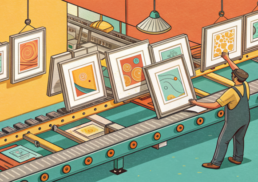
The cutout is the easy part. What eats your afternoon is everything around it: writing the brief, planning variations, drafting captions for six placements, checking the output before it ships. That’s the part the remove.bg ai integration inside HotBot actually helps with.
On a paid HotBot plan, you connect remove.bg from inside HotBot and the assistant works with your remove.bg data directly. No copy-paste shuffle. This guide covers what that unlocks — briefs, prompts, scripts, caption variations, asset planning, and output QA — with example prompts and the HotBot model tier that fits each job. If you’re a designer, creator, or marketer, this is the ai creative workflow with remove.bg worth setting up.
One clarification before the steps: HotBot is an independent AI chat service. It’s not an official remove.bg product and it’s not affiliated with or endorsed by remove.bg. Third-party names here just identify the tools and models you can use.
Prerequisites: What You’ll Need
- A HotBot paid plan — connectors are a paid-plan feature (free tier is for trying HotBot without connectors). Pricing is free tier, $7.95/week or $39.95/quarter. See HotBot pricing.
- A remove.bg account with some images processed or an API key (your first 50 API calls per month are free, per remove.bg).
- Source images you’re actually working on — product shots, headshots, thumbnails.
- A rough idea of where these assets are going (ad, PDP, social, email).
Estimated time: 15–20 minutes for first setup and your first workflow. Difficulty: Beginner. If you can type a prompt, you can do this.
Timing note: remove.bg has said its standalone website will no longer be available from 1 December 2026 at 9:00am CET, with background removal moving to Leonardo.Ai (also part of Canva), per remove.bg’s API docs. Worth planning your pipeline around.
Step 1: Connect remove.bg Inside HotBot
Subscribe to a paid plan first if you haven’t. Then connect remove.bg from inside HotBot — that’s the whole idea. Once it’s connected, the assistant can work with your remove.bg data directly instead of you pasting screenshots and file names back and forth.
I won’t walk you through menu paths or OAuth screens I can’t verify. You’ll find the connect flow inside HotBot once you’re subscribed. Start at the pricing page and go from there.
Why connect at all instead of just chatting? The connector means HotBot references your actual remove.bg context — the assets, the settings, the usage — so the briefs and captions it generates map to real work, not hypotheticals. It’s the difference between a generic “write me a caption” and one that knows what you cut out.
Step 2: Generate a Creative Brief from Your Cutouts
Once connected, start every project with a brief. It sounds corporate, but a tight brief saves you three rounds of revisions later.
Example prompt (HotBot Chat):
Using my remove.bg assets, draft a creative brief for a spring
product launch. Include: goal, audience, 3 key messages, required
asset formats (square, story, PDP hero), and tone. Keep it under
250 words.
For fast, everyday brief drafting, HotBot Chat is the pick — it’s quick and you’re not doing heavy reasoning yet. If your brief needs to reconcile competing goals, say brand consistency versus aggressive discount messaging, move up to Chat Plus for step-by-step thinking.
The brief is also where you catch scope creep. If HotBot’s draft lists five formats and you only budgeted for two, better to know before you start rendering.
Step 3: Write Image Prompts and Background Variations
Background removal gives you a flexible product layer. That transparent PNG is the starting point, not the finish line. Remove.bg is the fastest choice when you need transparent PNGs and batch processing — it handles bulk editing up to 500 images per minute, per remove.bg. The next move is planning what goes behind the subject.
Example prompt (Chat Plus):
For my cutout product images, write 6 background-generation prompts:
2 lifestyle scenes, 2 seasonal, 2 solid-color e-commerce (white
#FFFFFF and light gray). For each, specify lighting, mood, and where
the product sits in frame.
Model choice matters here. If you want richly art-directed scene descriptions with real variety, reach for a third-party model on HotBot — the 800+ models on HotBot include creative-writing engines that riff harder than a fast general model. One subscription, access to all of them.
Then feed those prompts into HotBot Image or your background generator of choice. Keep the ideation in chat, the rendering in an image engine.
Step 4: Script Video and Draft Caption Variations
Animating product cutouts with motion and transitions is a real trend now. Even if you’re not doing full video yet, writing the script forces you to think in beats.
Example prompt (Chat Plus):
Write a 15-second video script for this product cutout: hook,
2 benefit beats, CTA. Then give me 5 caption variations for
Instagram, 3 for TikTok, and 2 for a PDP - each with a different
angle (value, social proof, urgency, curiosity, feature).
Captions are where most creators either write one and clone it everywhere or burn an hour writing ten by hand. The connector-aware assistant splits the difference. For this volume of variation, Chat Plus handles the structured multi-output ask cleanly.
You might be wondering whether this is just a remove.bg chatgpt alternative with extra steps. Sort of. But the point is one subscription across HotBot Chat, Plus, Pro, and 800+ models, all working from your connected data — not three tabs and a spreadsheet.
Step 5: Plan Asset Variations at Scale
If you’re shipping a catalog, think in workflows, not single cutouts. Background removal is usually step one in a chain: cut out, standardize, place, resize, export. For ecommerce teams especially, that chain is the whole game.
Example prompt (Chat Pro):
I have 40 product cutouts across 8 categories. Build a variation
matrix: for each category, specify background type, aspect ratios
needed for Meta/Google/PDP, and a naming convention. Flag which
categories need lifestyle vs plain backgrounds and why.
This is a Chat Pro job. When you’re reasoning across dozens of assets, dependencies, and export specs, you want the deep reasoning and the big context window. Chat Pro brings a 1M-token context and vision, which matters when you paste in a whole catalog structure and ask it to hold all of it at once.
At $9/month for 40 images on remove.bg’s low-volume plan (roughly $0.22 an image, per one 2026 comparison), you don’t want to waste cutouts on variations you’ll never use. Plan first.
Step 6: QA Your Outputs Before They Ship
The failure mode I see most: a cutout with a faint white fringe around the hair, shipped straight to a paid ad. Remove.bg is strong on hair edges, but nothing’s perfect, and vague instructions cause misreads. A broad “remove the background” can delete the coffee cup you wanted to keep.
Example prompt (Chat Pro, with vision):
Review these exported assets against my brief. Check: edge quality
on hair/transparent areas, correct aspect ratios, background matches
spec, caption matches image. List issues by asset with a fix.
Chat Pro’s vision lets it look at what you exported and cross-check it against the brief from Step 2. That closes the loop from brief to QA in one thread.
Without the Connector: Using the Free Tier
No paid plan yet? You can still get value. The free tier is for trying HotBot without connectors, so you paste your remove.bg content — image details, settings, the results you got — directly into the chat and prompt from there.
It works. It’s just more manual. You lose the “assistant works with your remove.bg data directly” part, so you’re the one keeping context in sync. Fine for a one-off. For anything recurring, the connector pays for itself in saved copy-paste alone.
Troubleshooting: Common Issues
- “The captions feel generic.” You’re probably on a fast model for a creative task. Move caption work to Chat Plus or a third-party creative model on HotBot’s model list.
- “It didn’t use my remove.bg data.” Confirm you’re on a paid plan and the connector is actually connected inside HotBot — the free tier doesn’t include connectors.
- “The QA missed an edge issue.” Make sure you’re using Chat Pro with vision and that you actually attached the exported image, not just described it.
- “My prompt deleted the wrong element.” Be specific with remove.bg-style instructions. Name what to keep, not just what to remove.
What’s Next
Once your first project runs end to end, save your best prompts as templates: the brief prompt, the caption matrix, the QA checklist. That’s your reusable ai creative workflow with remove.bg.
From there, layer in HotBot Image for backgrounds, test different third-party models for tone, and let Chat Pro handle the catalog-scale planning. To connect it, start on the HotBot pricing page.
FAQ
Do I need a paid plan to connect remove.bg?
Yes. Connectors are a paid-plan feature — that’s $7.95/week or $39.95/quarter. The free tier is for trying HotBot without connectors, so you’d paste remove.bg content into the chat manually instead.
Is HotBot an official remove.bg product?
No. HotBot is an independent AI chat service and isn’t affiliated with or endorsed by remove.bg. Third-party names just identify the tools and models available to you.
Which HotBot model should I use for caption writing?
For most caption work, Chat Plus handles the structured, multi-variation asks well. If you want more creative range, try one of the 800+ third-party models on HotBot for that specific step.
Can HotBot actually see my exported images?
Yes. Chat Pro includes vision and a 1M-token context, so it can review attached assets against your brief for edge quality, aspect ratios, and caption match. Attach the actual file for best results.
Is this a good remove.bg chatgpt alternative?
If what you want is one subscription covering fast chat, step-by-step reasoning, deep reasoning, image generation, and 800+ models — all working from your connected data — then yes. You’re not juggling separate tools for each step.
What happens when remove.bg moves to Leonardo.Ai in December 2026?
Per remove.bg’s own docs, the standalone site retires December 1, 2026, with background removal moving to Leonardo.Ai. Plan your pipeline with that migration in mind so your connected workflow doesn’t break.