In the fast-paced world of computing, grasping RAM vs. storage is essential for unlocking peak performance. As a form of computer memory, RAM enables random access for the CPU to swiftly process data, while storage devices-like traditional hard drives and modern solid state options-provide long-term data retention. This guide breaks down their differences, empowering you to achieve optimal performance by optimizing your setup for efficiency and speed.
Table of Contents
Key Takeaways:
- RAM provides fast, temporary memory for handling multiple tasks, while storage offers persistent, slower data retention; understanding this distinction optimizes system performance.
- Key differences include RAM’s volatility (loses data without power) versus storage’s persistence, plus RAM’s higher speed but lower capacity and cost per GB.
- Adequate RAM boosts multitasking and speed by reducing reliance on Virtual Memory or swap space, while sufficient storage ensures long-term data access; balancing both is crucial for efficient computing.
What is RAM?
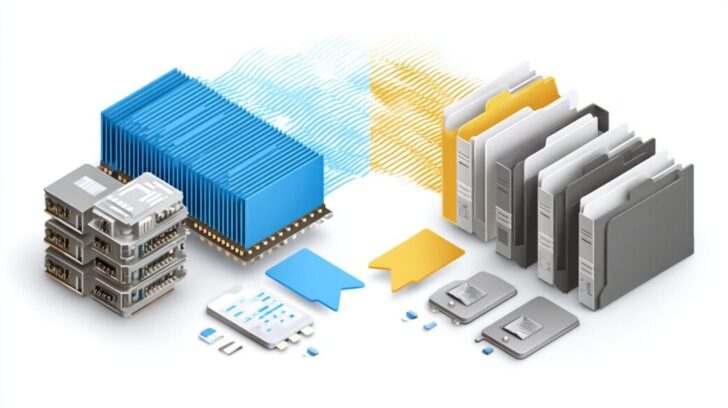
Random Access Memory (RAM) functions as the short-term memory of a computer system, providing rapid access to data actively utilized by the Central Processing Unit (CPU). This capability is essential to meet processor needs for multitasking with resource-intensive applications, such as AutoCAD, which requires a minimum of 16 GB of RAM to maintain smooth and efficient operation.
Types of RAM
Common types of RAM, built from integrated circuits, include DDR4, which serves as the standard for most personal computers with operational speeds ranging from 2133 to 3200 MHz, and the emerging DDR5 standard, capable of reaching up to 8400 MHz in high-performance systems. For laptops, SODIMM variants are commonly used, such as those offered by Crucial, which provide 8 GB modules at an approximate cost of $35.
| Type | Speed Range | Capacity Options | Best For | Pros/Cons |
|---|---|---|---|---|
| DDR4 | 2133-3200 MHz | 4-128 GB | Desktops/gaming | Cost-effective; higher power consumption |
| DDR5 | 4800-8400 MHz | 8-256 GB | Future-proof builds | Higher performance; elevated cost |
| SRAM | 10 ns access | Low capacity | Cache memory | Extremely fast; limited density |
| DRAM | 60 ns | High capacity | Main system RAM | Economical; larger physical size |
When planning to upgrade hardware such as physical RAM modules, it is advisable to utilize diagnostic tools such as CPU-Z or the Control Panel on Windows and System Preferences on Apple devices to verify motherboard compatibility and existing system specifications prior to acquisition. For example, ensure that DDR4 slots align with the voltage requirements of the target system.
Per Micron Technology’s 2023 semiconductor specifications, DDR5 modules demonstrate up to 50% greater energy efficiency compared to DDR4, rendering them particularly suitable for enhancements in power-constrained configurations, such as those in laptops, thereby extending battery life.
How RAM Functions
Random Access Memory (RAM) operates by enabling random access to data at speeds ranging from 10 to 60 nanoseconds, which permits the Central Processing Unit (CPU) to retrieve instructions efficiently for operations such as loading a 2MB web page or a standard word document in less than 50 milliseconds, in contrast to non-volatile storage media.
To optimize RAM performance, adhere to the following structured procedures:
- Transfer data from storage to RAM utilizing Direct Memory Access (DMA) mechanisms, capable of achieving a transfer rate up to 10 GB/s; this facilitates rapid program loading, exemplified by the boot process for Windows completing in 20 to 30 seconds on a system equipped with 16 GB of available RAM.
- Facilitate CPU read and write operations through the address bus; ensure system stability by employing the MemTest86 diagnostic tool, which conducts comprehensive overnight testing to identify errors or can perform basic validations in 1 to 2 hours.
- Implement scheduled garbage collection routines to eliminate temporary files and mitigate fragmentation; utilities such as CCleaner can automate this process in fewer than 5 minutes.
It is advisable to eschew prevalent errors, including overclocking RAM without sufficient cooling, as this may precipitate system instability and operational failures.
For a more in-depth analysis, consult the IEEE publication titled “Memory Hierarchies in Modern Computing” (2020), which elucidates caching optimizations that enhance data access efficiency by up to 30%.
What is Storage?
Storage is essential for data storage, denoting non-volatile hardware components engineered to maintain data integrity indefinitely, irrespective of power availability.
This capability is critical for preserving user data, such as a 50GB collection of premium (AAA) video games, which can be more effectively accommodated on a solid-state drive (SSD) compared to a conventional hard disk drive (HDD).
Types of Storage Devices
Storage devices encompass a wide array of options for internal storage and external drive, ranging from hard disk drives (HDDs)-such as the Seagate Barracuda 2TB model, priced at $50 and ideal for bulk storage-to solid-state drives (SSDs), including the Samsung 870 EVO 1TB variant at $90, which prioritizes performance speed. Cloud-based alternatives, like Google Drive, also provide 15GB of complimentary storage space.
The table below outlines various storage device types, including representative pricing, capacities, access speeds, primary applications, and advantages/disadvantages:
| Type | Price Example | Capacity | Access Speed | Best For | Pros/Cons | |——————-|———————|——————-|——————|—————-|————————————|
The table below outlines various storage device types, including representative pricing, capacities, access speeds, primary applications, and advantages/disadvantages:
| Type | Price Example | Capacity | Access Speed | Best For | Pros/Cons | | |
Seagate’s heat-assisted magnetic recording (HAMR) technology represents a significant advancement in HDD capabilities. By utilizing laser-induced heat, this method enables denser data packing, supporting capacities from gigabytes terabytes up to 30TB, as evidenced by the company’s 2023 Mozaic 3+ prototypes.
This innovation enhances operational efficiency for enterprise-level storage, achieving a 20% reduction in energy consumption per terabyte compared to conventional HDDs, as detailed in Seagate’s technical whitepapers.
For users requiring substantial archival storage solutions, HAMR-enabled HDDs present a cost-effective pathway for upgrading infrastructure.
How Storage Operates

Storage systems function by writing data to non-volatile media, such as solid-state drives (SSDs) that employ NAND flash cells to achieve transfer rates of up to 3500 MB/s. This process ensures the secure persistence of data across power cycles.
To optimize this operation, adhere to the following numbered steps for efficient data management:
- Write data via the controller using the NVMe protocol on SSDs; for instance, transferring a 1 GB file typically requires 5-10 seconds, thereby minimizing latency.
- Perform read operations through file systems such as NTFS in Windows File Explorer, where HDD seek times average 5-10 ms, compared to the near-instantaneous access of SSDs.
- Implement error correction with ECC memory to ensure secure data by detecting and correcting bit errors, and consistently back up RAID 0 arrays to mitigate the risk of data loss.
Common pitfalls include the omission of TRIM commands on SSDs, which can lead to up to 50% performance degradation over time by populating unused blocks.
For cloud storage, comply with NIST SP 800-88 guidelines for secure data erasure on remote servers, thereby ensuring adherence to standards and maintaining data integrity across distributed systems.
This methodology can reduce downtime by 30-40%, as evidenced by industry benchmarks.
Key Differences Between RAM and Storage
Random Access Memory (RAM) and storage devices differ fundamentally in terms of speed, data persistence, and scalability. RAM delivers nanosecond-level access for central processing unit (CPU) operations, whereas storage accommodates terabytes of permanent data at a substantially lower cost per gigabyte.
Speed and Access Time
RAM provides access times ranging from 10 to 60 nanoseconds, facilitating near-instantaneous data retrieval for the processor. In contrast, solid-state drives (SSDs) offer access times of 0.1 milliseconds, and hard disk drives (HDDs) range from 5 to 10 milliseconds, potentially creating data bottlenecks and doubling loading times for resource-intensive applications such as high resolution video editing software.
To illustrate the performance differences, the following table compares key metrics:
| Component | Access Time | Bandwidth |
|---|---|---|
| RAM | 10 ns | 3.2 GB/s |
| SSD | 0.1 ms | 3.5 GB/s |
| HDD | 8 ms | 150 MB/s |
RAM excels in real-time processing tasks, such as rendering AAA games at 60 frames per second to ensure smooth gameplay, whereas SSDs and HDDs are suited for persistent storage functions, including the saving of large video files. According to benchmarks from Tom’s Hardware, RAM enhances multitasking performance by up to five times in CPU-intensive workloads.
For practical optimization, utilize the Windows Task Manager to monitor available RAM utilization. If usage consistently exceeds 80%, consider upgrading to DDR4 memory operating at 3200 MHz.
Volatility and Persistence
Random Access Memory (RAM) is inherently volatile, resulting in the loss of temporary data upon system shutdown, such as unsaved documents in applications like Microsoft Word.
In contrast, storage devices provide persistent retention for permanent data, exemplified by operating system files on non-volatile solid-state drives (SSDs) or USB Flash Drives, which maintain information without the need for continuous power.
This volatility in RAM frequently contributes to system crashes during unexpected power outages. According to a 2023 study published by the Institute of Electrical and Electronics Engineers (IEEE), data loss occurred in 20% of such incidents, particularly in RAM-intensive operations such as video editing.
SSDs, however, employ flash memory technology utilizing NAND cells, which can retain data for up to 10 years in the absence of power, thereby ensuring dependable long-term storage.
To address these risks, it is advisable to implement an Uninterruptible Power Supply (UPS) to maintain power continuity during tasks requiring significant RAM utilization. Additionally, enabling autosave features in software applications, such as Adobe Photoshop, facilitates session recovery following an outage.
For scenarios involving RAM limitations, virtual memory swapping can be employed, whereby the operating system temporarily transfers data to storage devices; for instance, in Windows, the pagefile.sys mechanism can effectively extend an 8GB RAM configuration to a 16GB capacity.
Capacity and Cost
Storage solutions provide expansive capacities, such as 20TB heat assisted hard disk drives (HDDs) available for approximately $300 (equivalent to $0.15 per GB), which far exceed the typical 64GB limitation of random access memory (RAM) priced at around $200 ($3 per GB). Consequently, cloud storage options, which rely on a stable internet connection, offering unlimited space through subscription levels, such as Microsoft OneDrive’s 1TB plan for $70 annually, are particularly suitable for accommodating large volumes of user data.
To optimize your infrastructure, evaluate alternatives based on the following cost-capacity analysis:
| Option | Capacity Range | Cost per GB | Best Use Case |
|---|---|---|---|
| RAM | 8-128GB | $0.50-$5 | In-memory processing, such as MongoDB databases requiring 32GB for rapid query execution |
| Storage (HDD/SSD) | 1TB-100TB | $0.02-$0.20 | Backups and archival purposes; RAID configurations can reduce redundancy costs by up to 50% |
| Cloud | Scalable to unlimited | $0.01/GB per month | Petabyte-scale data management; AWS S3 for dynamic scalability |
For practical implementation, conduct a thorough needs assessment: allocate RAM for applications demanding high-speed performance, utilize HDDs for high-volume data retention, and leverage cloud services for enhanced flexibility.
According to IDC’s 2023 report, storage costs have declined by 30%, facilitating the establishment of cost-effective petabyte-scale data centers. Organizations are advised to adopt a hybrid strategy to effectively balance performance requirements with budgetary constraints.
Why RAM and Storage Matter
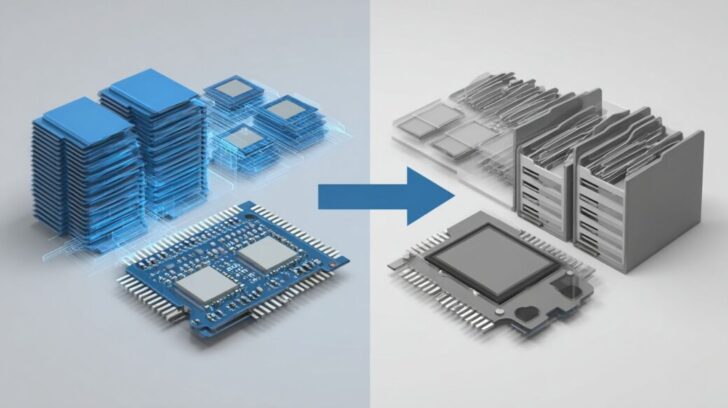
Sufficient RAM and storage capacity are essential for achieving optimal system performance. Research from Puget Systems demonstrates that 16GB of RAM can reduce lag by 40% in Adobe Premiere, thereby preventing data bottlenecks that accelerate battery drain in laptops.
Impact on System Performance
Upgrading to 32GB of RAM can enhance system performance by 25-50% for resource-intensive tasks, such as rendering high-resolution 4K videos in AutoCAD. This improvement is comparable to transitioning from a disorganized filing cabinet to structured shelving, enabling more efficient access to files.
Insufficient RAM frequently results in loading times that are two to five times longer-for instance, 30 seconds compared to 6 seconds when managing multiple Chrome tabs-as evidenced by benchmarks from Puget Systems. In gaming, leading titles such as Cyberpunk 2077 require at least 16GB to sustain 60 frames per second at 1080p resolution. Similarly, professionals working with large datasets, such as Excel spreadsheets containing one million rows, experience substantial improvements in multitasking capabilities.
A $100 investment in a RAM upgrade has the potential to yield up to 10 hours of weekly productivity gains, according to a Forrester study. To assess your specific requirements, utilize the free UserBenchmark tool and target memory test scores exceeding 70%. Subsequently, consider upgrading to compatible DDR4 physical modules from reputable manufacturers like Corsair or Kingston.
Learn more, How much RAM Memory Does My Computer Need?
Practical Considerations for Users
For Windows users, practical enhancements such as installing a 1TB solid-state drive (SSD) through the Control Panel’s Device Manager can significantly improve internal storage capacity. Additionally, implementing a RAID 1 configuration as part of a backup strategy provides essential data redundancy to mitigate risks associated with hardware failures.
To optimize your system effectively, adhere to the following six best practices:
- Conduct a quarterly assessment of hardware requirements using the free Crucial System Scanner tool from Micron Technology to identify performance bottlenecks.
- Upgrade to a minimum of 16GB RAM; this can be accomplished in approximately 30 minutes as a do-it-yourself task, utilizing an anti-static wrist strap to prevent electrostatic damage.
- Replace the hard disk drive (HDD) with an SSD for the operating system drive-perform cloning using Macrium Reflect (a free utility) via File Explorer to facilitate a seamless transition.
- Implement a hybrid cloud strategy, such as iCloud’s 200GB plan available for $3 per month, to enable efficient mobile device synchronization.
- Monitor system performance on a weekly basis through Task Manager to detect issues related to CPU or memory utilization.
- Allocate a budget of approximately $200 for these upgrades, which can yield up to a 30% improvement in overall speed. For instance, in one documented case, an Apple user transitioned to an external network-attached storage (NAS) solution like the Synology DS220j (priced at $170), resulting in annual cloud cost savings of $50 while enhancing access speeds by 40%, according to a 2023 PCMag study.
Frequently Asked Questions
What is the primary difference between RAM and storage in the context of RAM vs. Storage: Understanding the Differences and Why They Matter?
RAM, or Random Access Memory, is temporary storage used by the computer’s processor for quick access to data currently in use, while storage (like HDDs or SSDs) is for long-term data retention. Understanding this distinction in RAM vs. Storage: Understanding the Differences and Why They Matter highlights how RAM is volatile and loses data when powered off, unlike persistent storage.
Why is RAM considered faster than storage, and how does this impact performance?

RAM is faster because it allows direct, high-speed access to data without mechanical parts, enabling the CPU to process tasks efficiently. In RAM vs. Storage: Understanding the Differences and Why They Matter, this speed difference means that insufficient RAM forces the system to use slower storage as virtual memory, causing lags and reduced performance.
How does RAM affect multitasking compared to storage?
RAM holds multiple applications’ data simultaneously for seamless switching, making multitasking smooth. Storage only retrieves data when needed, which is slower. Grasping RAM vs. Storage: Understanding the Differences and Why They Matter reveals why upgrading RAM improves handling of several programs, whereas storage upgrades focus on capacity rather than speed.
What happens when a computer runs out of RAM, and why does storage not fully compensate?
When RAM is exhausted, the system uses storage as virtual RAM, leading to slowdowns due to storage’s slower read/write speeds. In the framework of RAM vs. Storage: Understanding the Differences and Why They Matter, this shows that while storage can act as a backup, it can’t match RAM’s immediacy, often resulting in system freezes or crashes during heavy use.
Can storage replace RAM in a device, or are both essential?
Storage cannot fully replace RAM because it lacks the speed for real-time data access required by the CPU. RAM vs. Storage: Understanding the Differences and Why They Matter emphasizes that both are crucial: RAM for active processing and storage for saving files, ensuring a balanced system for optimal functionality.
Why should users care about the differences between RAM and storage for their devices?
Understanding these differences helps in choosing the right upgrades-more RAM for speed and responsiveness, more storage for file capacity. In RAM vs. Storage: Understanding the Differences and Why They Matter, this knowledge prevents common pitfalls like buying excessive storage while neglecting RAM, leading to better device performance and longevity.